Create new build pipeline #
NOTE: All description below only for
on-hostedBuild VM.
Pre requirements #
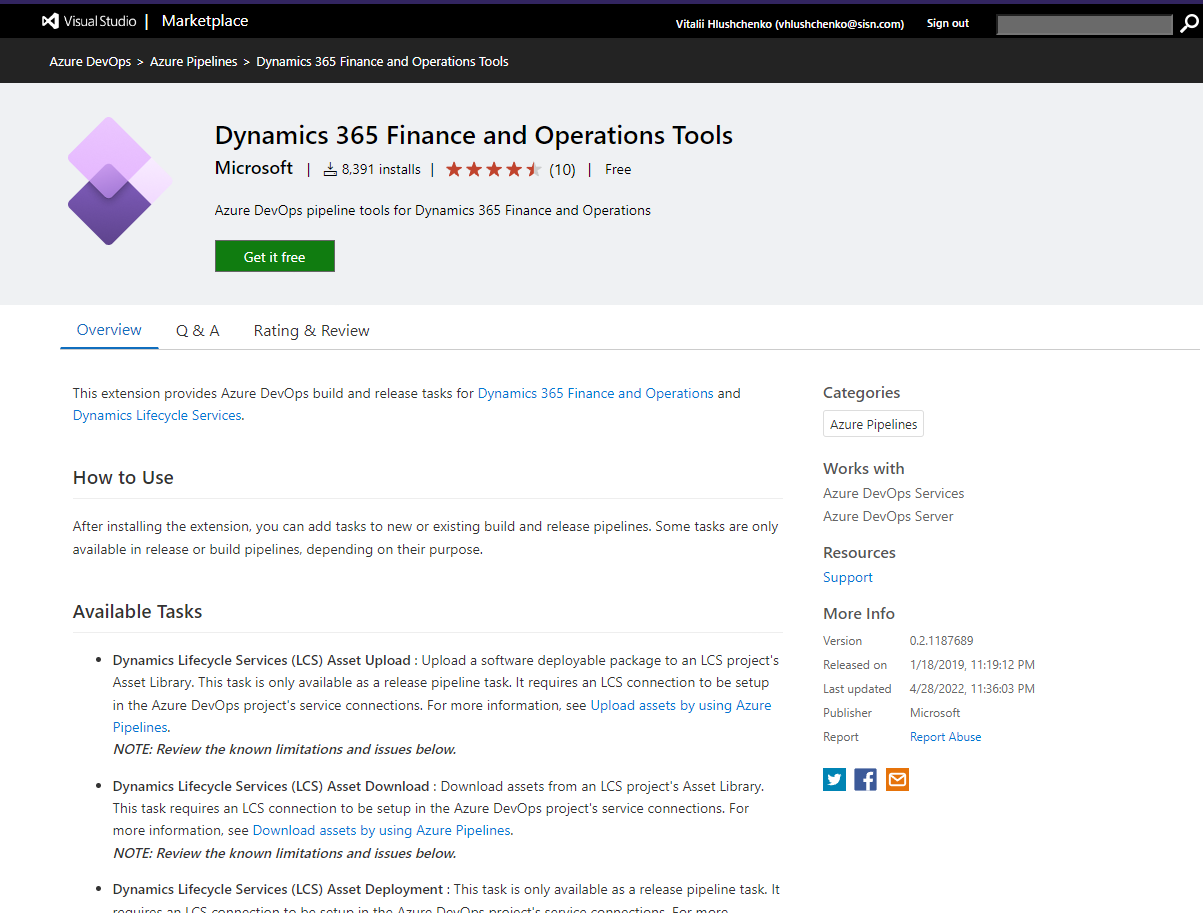
Dynamics 365 Finance and Operations Tools #
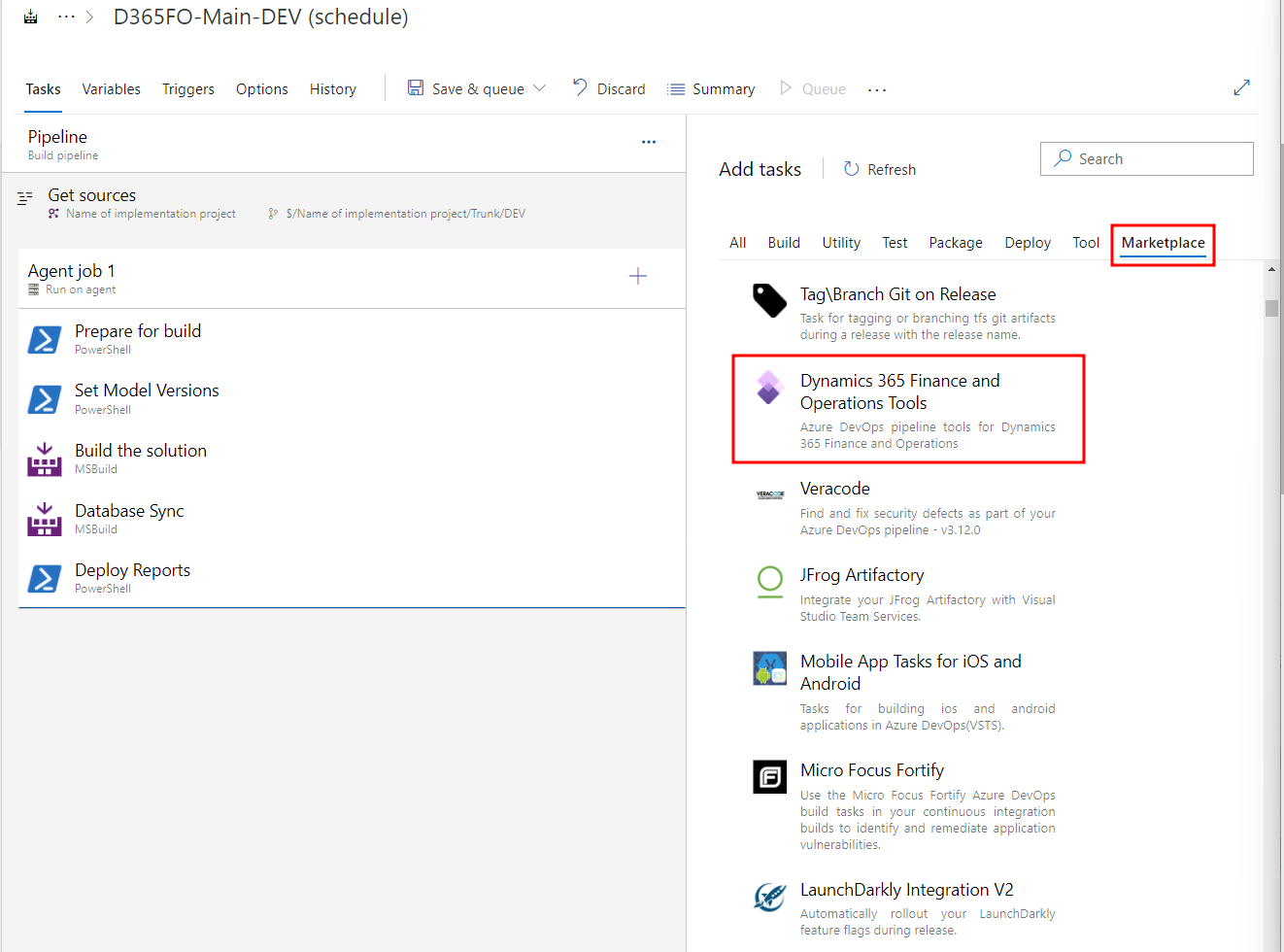
We should setup extension for Azure DevOps -
Dynamics 365 Finance and Operations Tools
From Market place site or from Azure DevOps
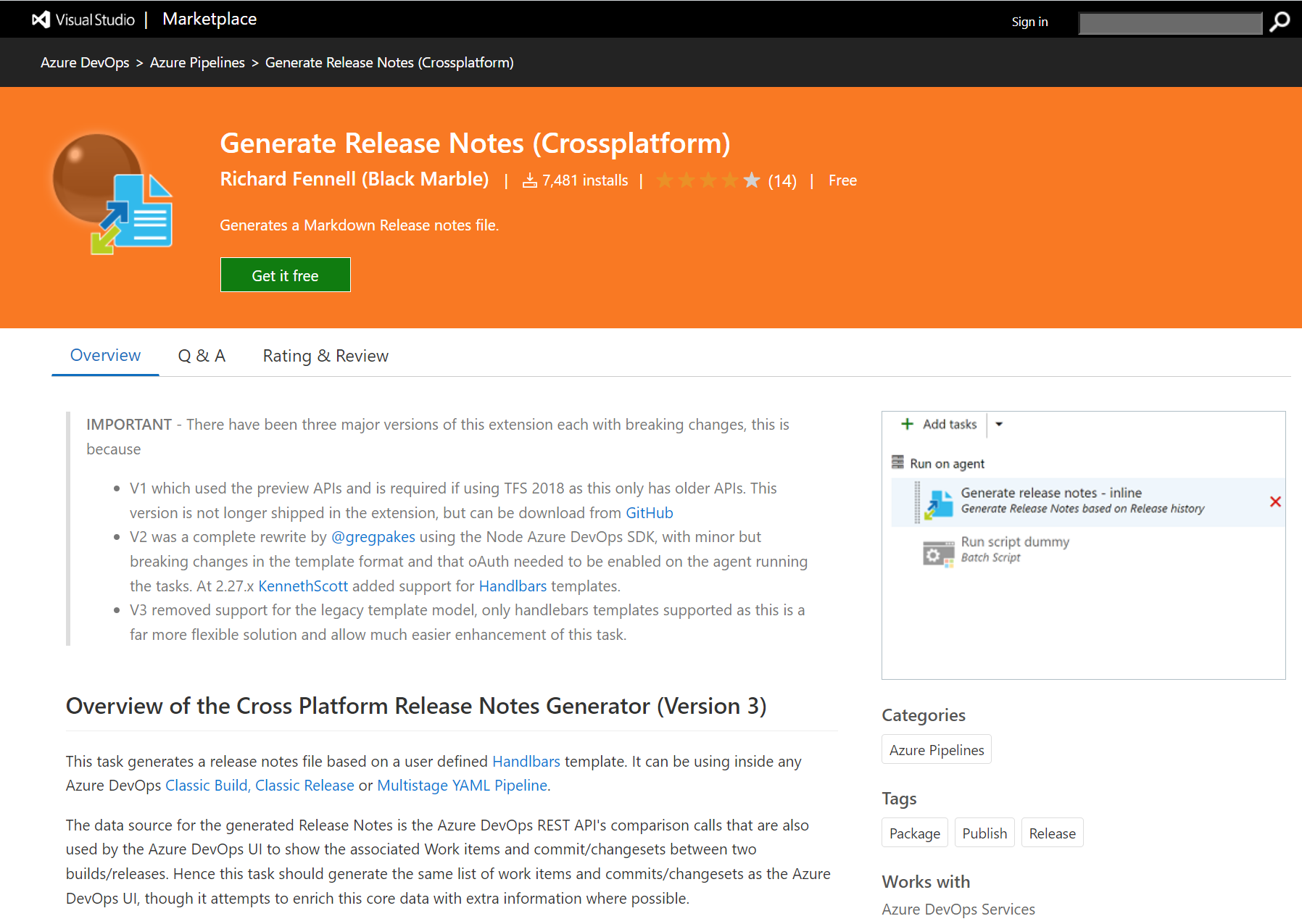
Generate Release Notes (Crossplatform) #
Generate Release Notes (Crossplatform)
Create new pipeline #
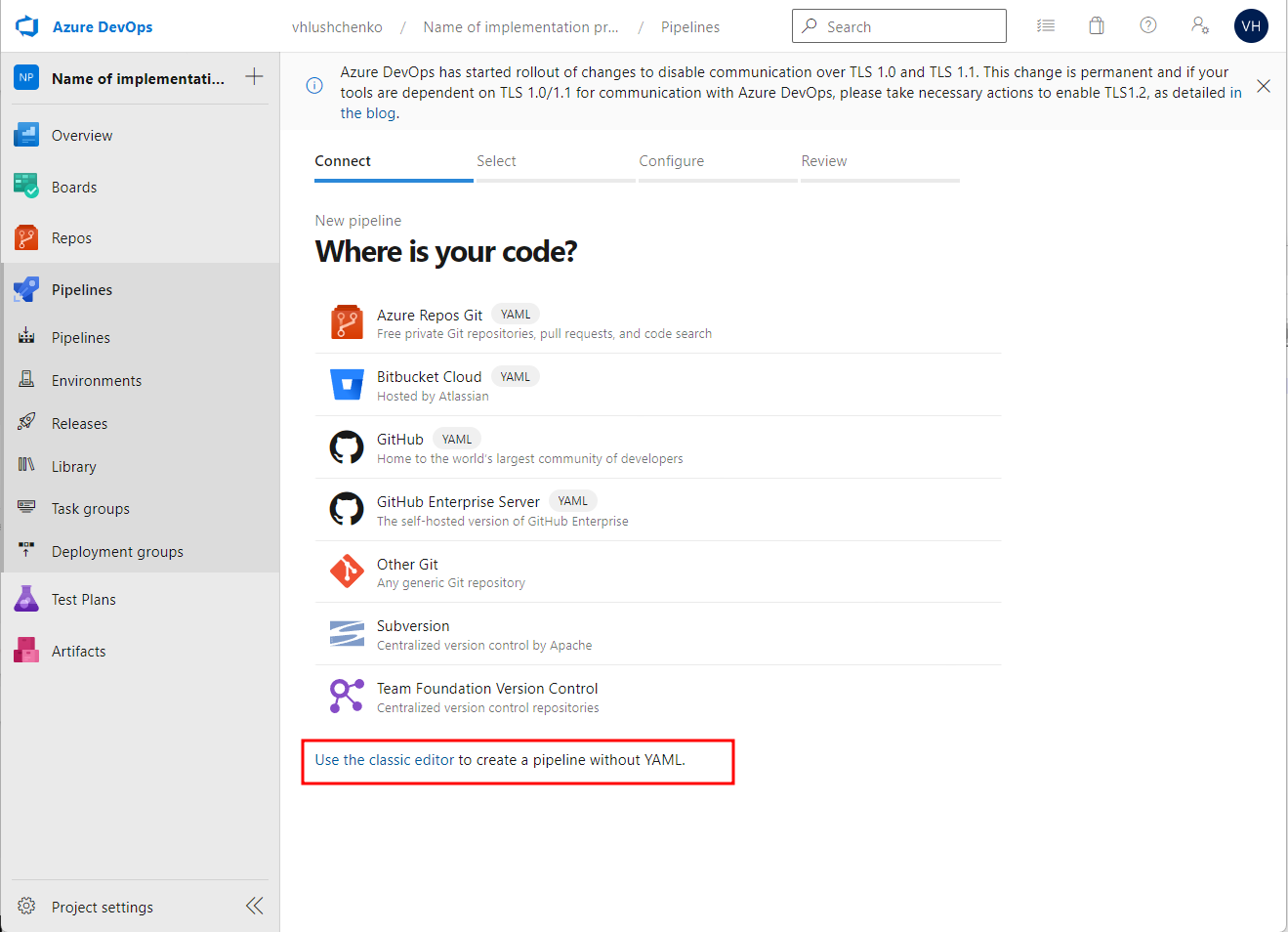
Go to Azure DevOps, Pipelines, Pipelines, create new pipeline. Select Use the classic editor to create a pipeline without YAML.
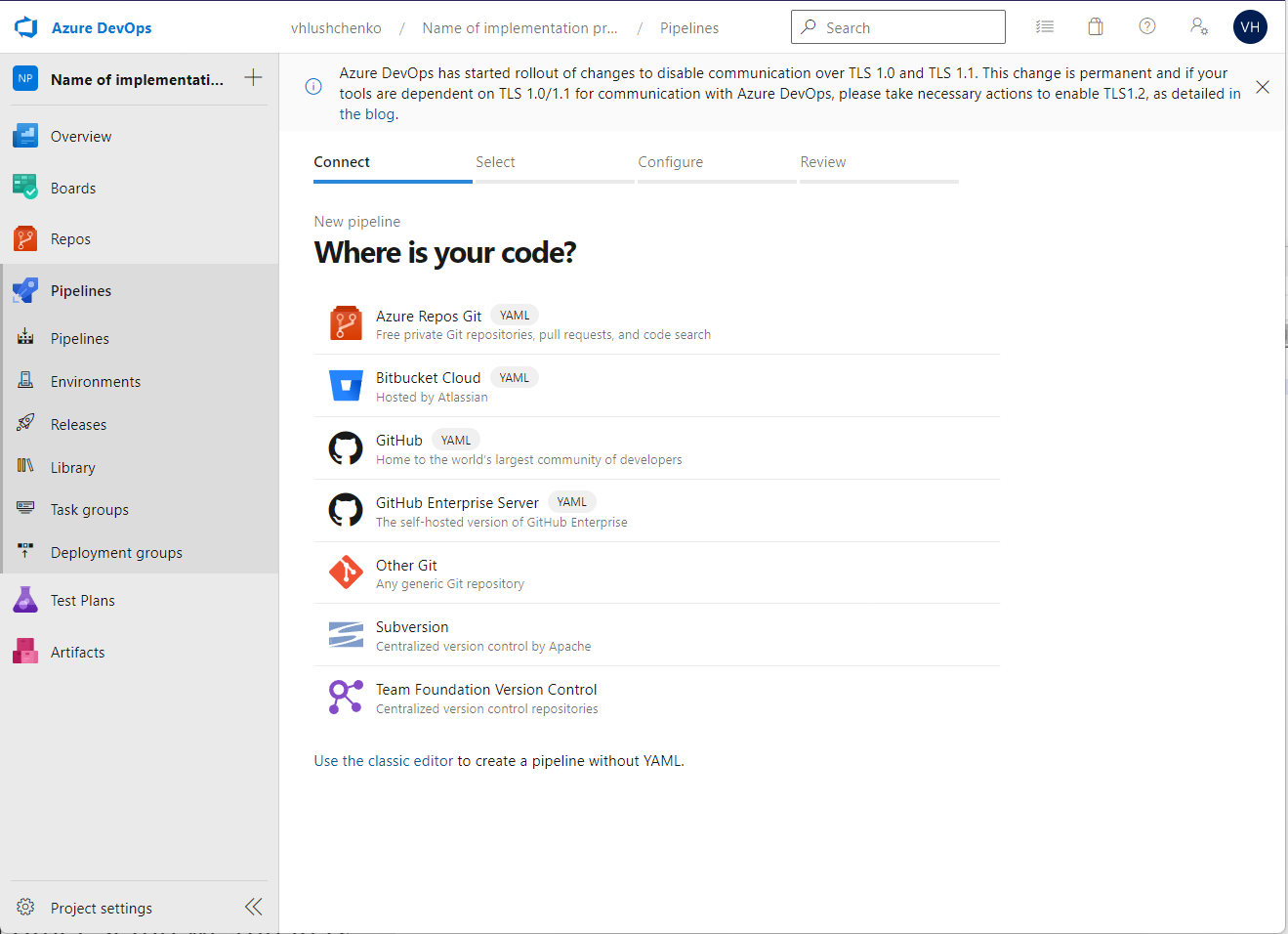
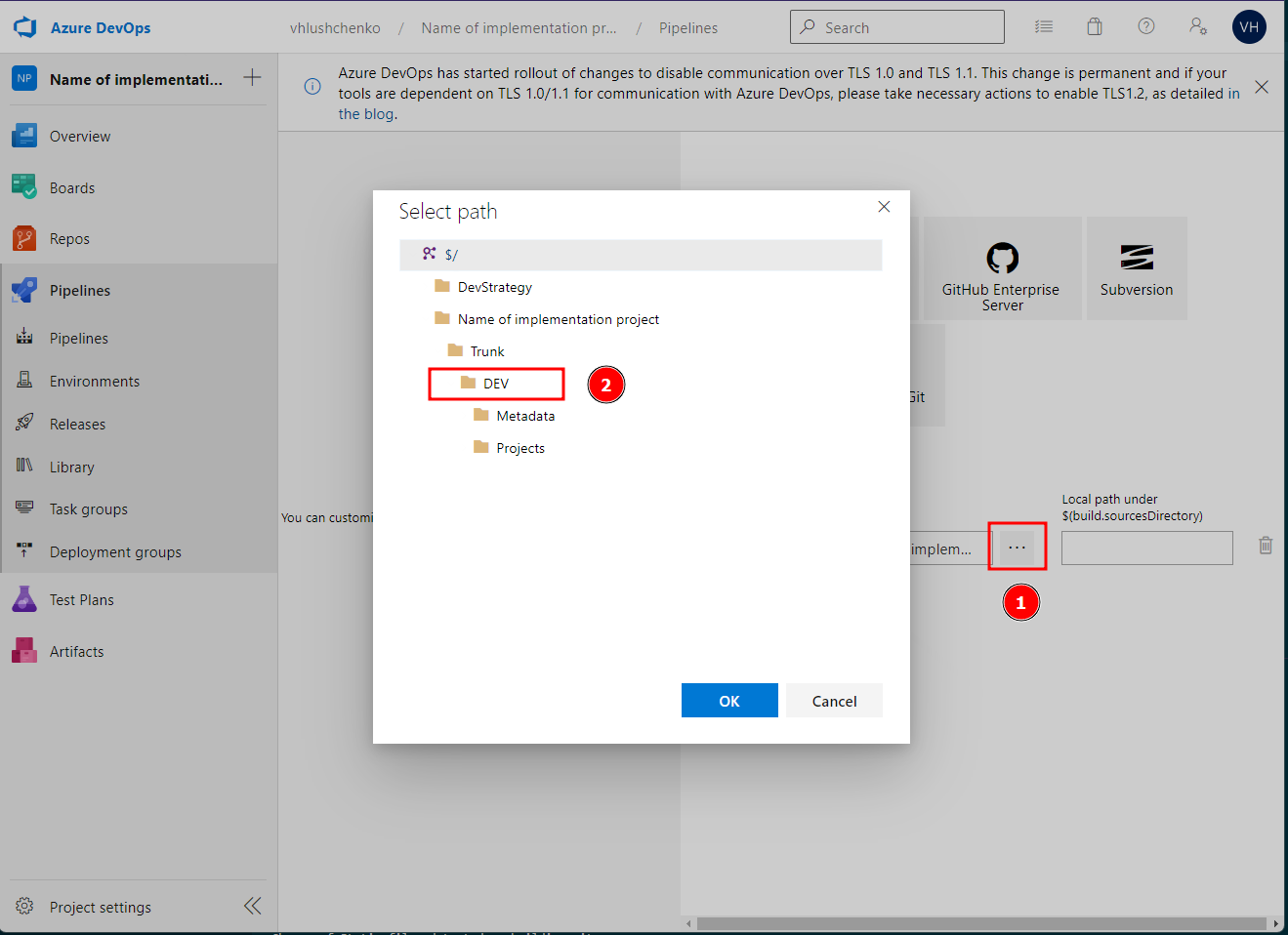
Select source
and path for code in this source
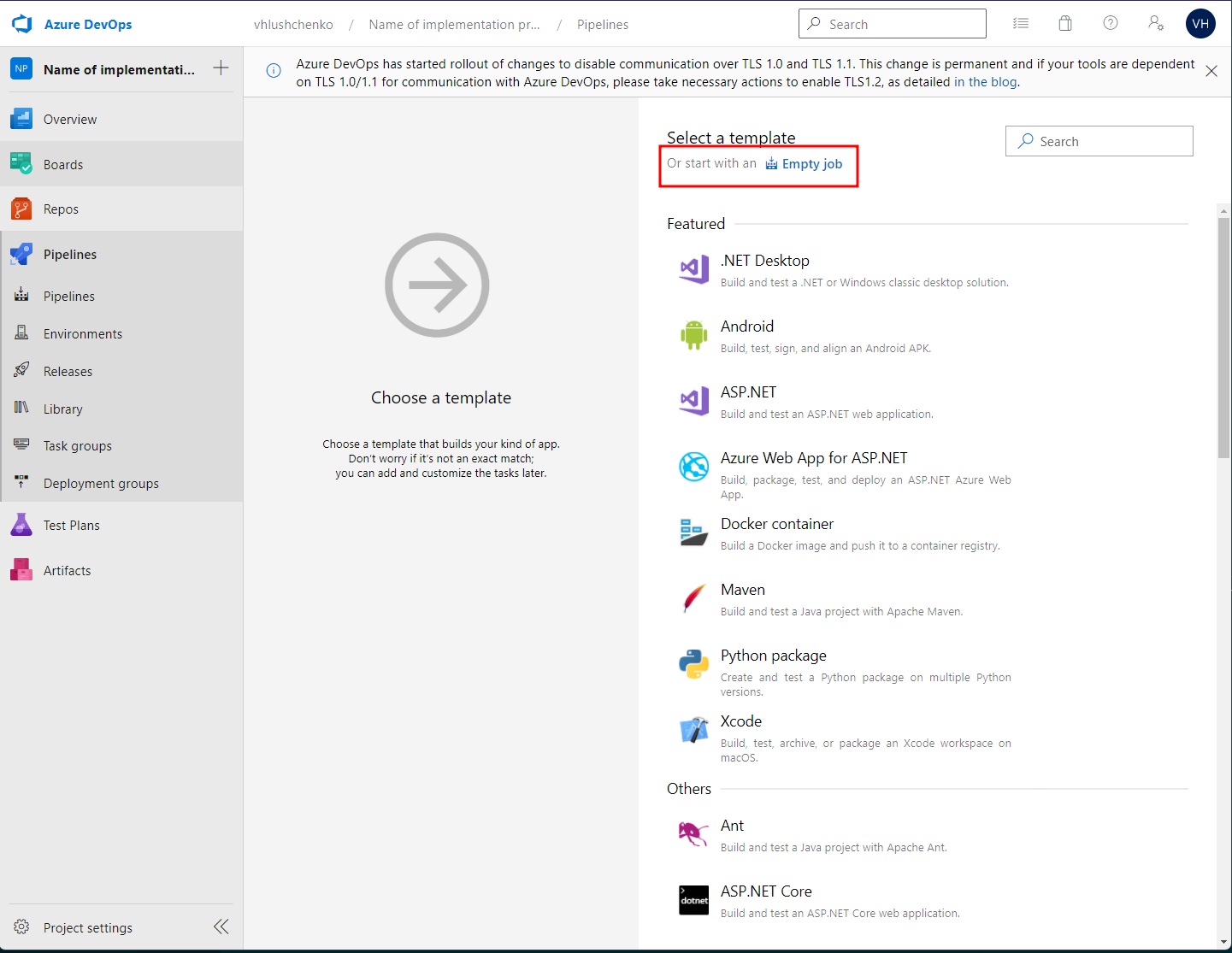
Select Empty job template
Give good name for yor template (1) and select proper Agent pool (2)
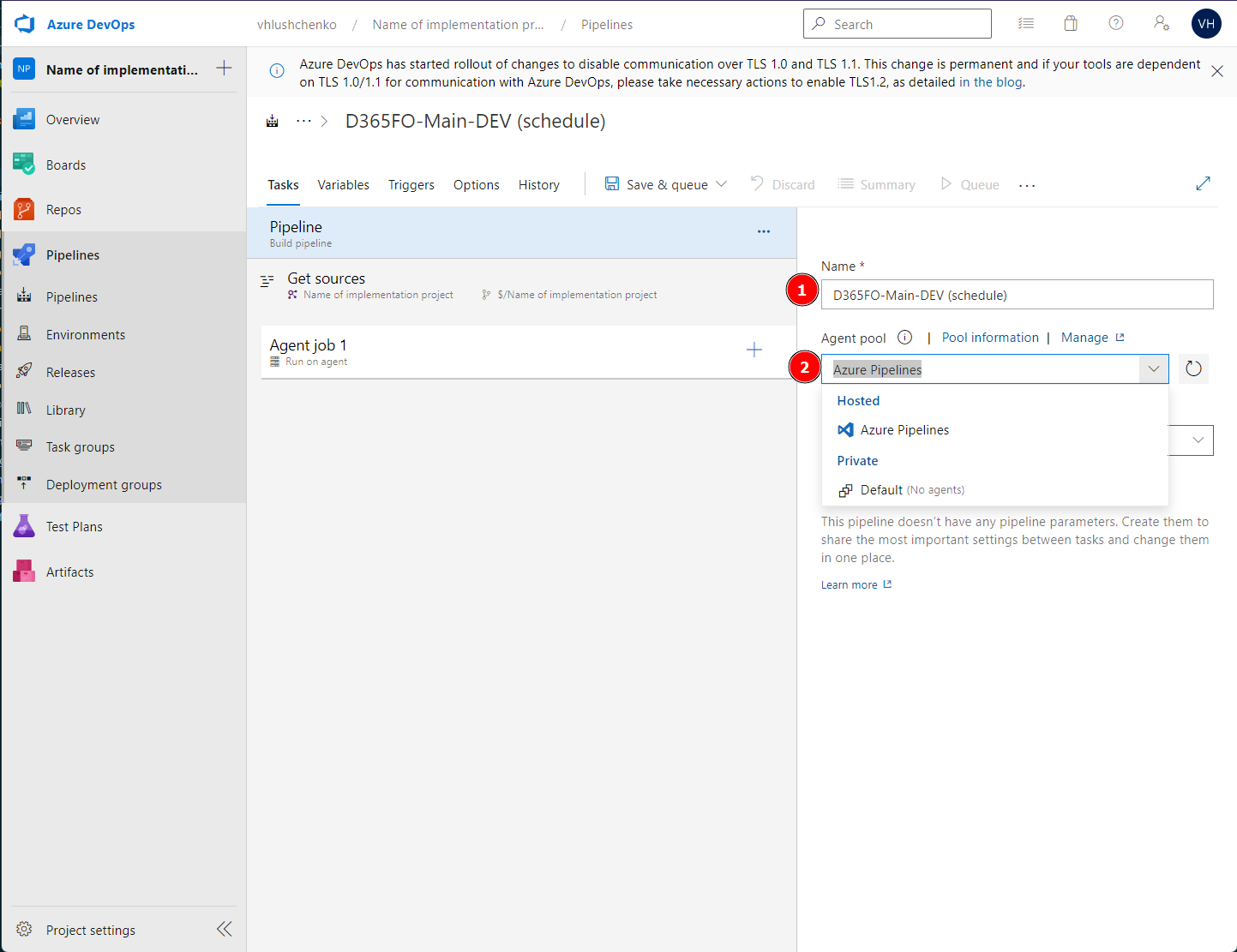
Agent pools (we can create own list of pools for our needs, but now we will look standard cases):
- Azure pipeline - VM MS managed, need to setup all dependencyes and we have limited free minutes for this pool
- Default - client managed VM setup like Build VM
Setup property #
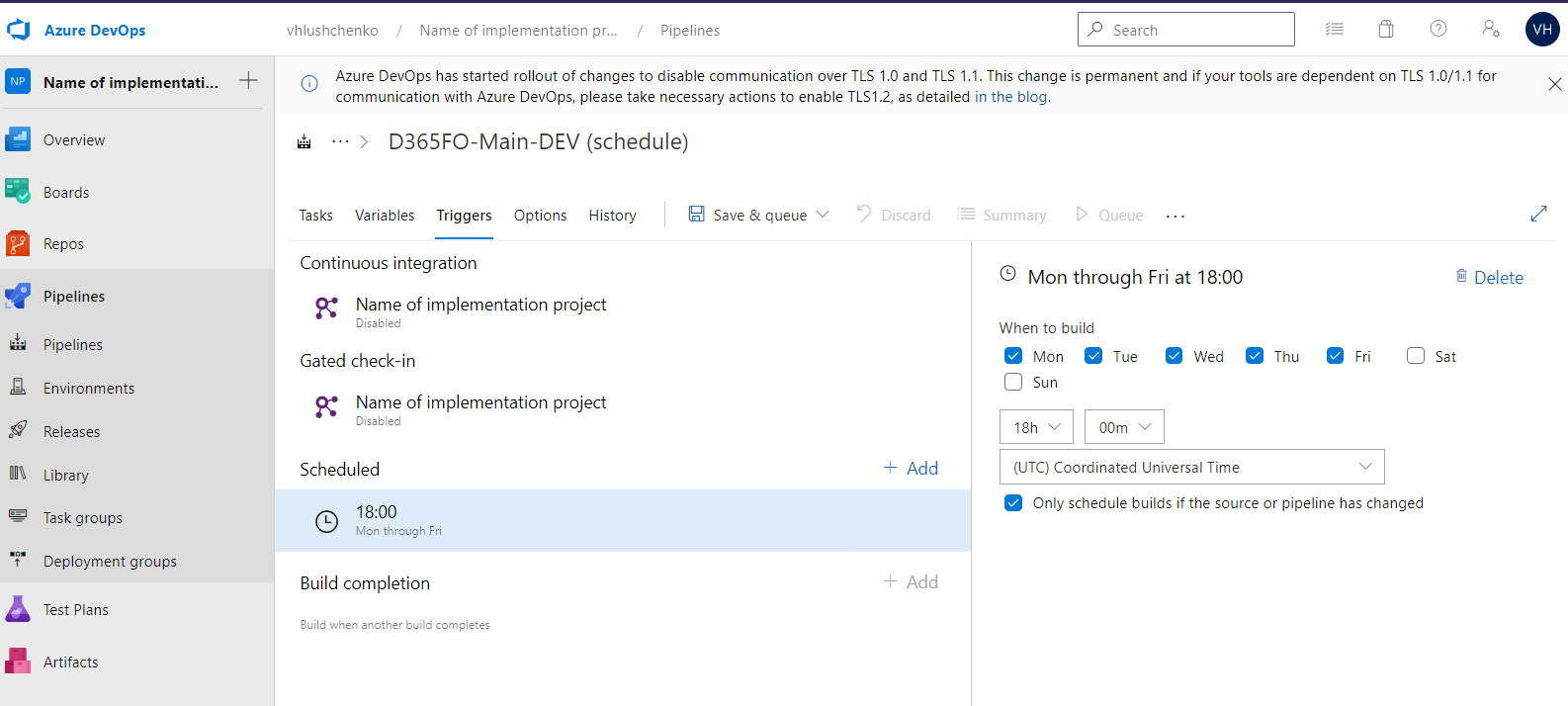
Trigers tabpage - setup schedule
Options tabpage
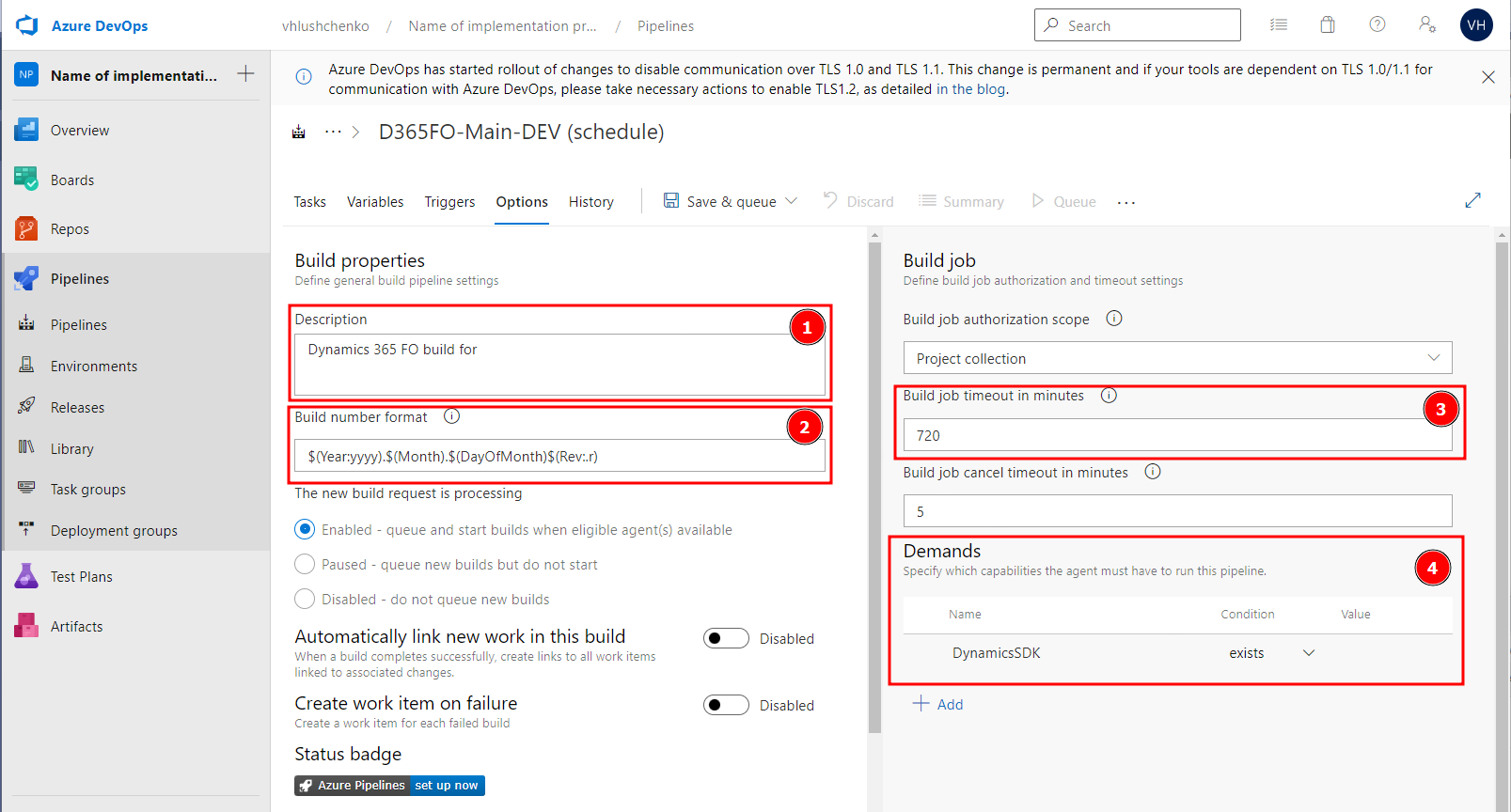
- Some human readable description
- Build format
$(Year:yyyy).$(Month).$(DayOfMonth)$(Rev:.r) - Increase timeout from
60to720minutes - Add demands
DynamicsSDKpackage
Pipeline tasks #
Get sources
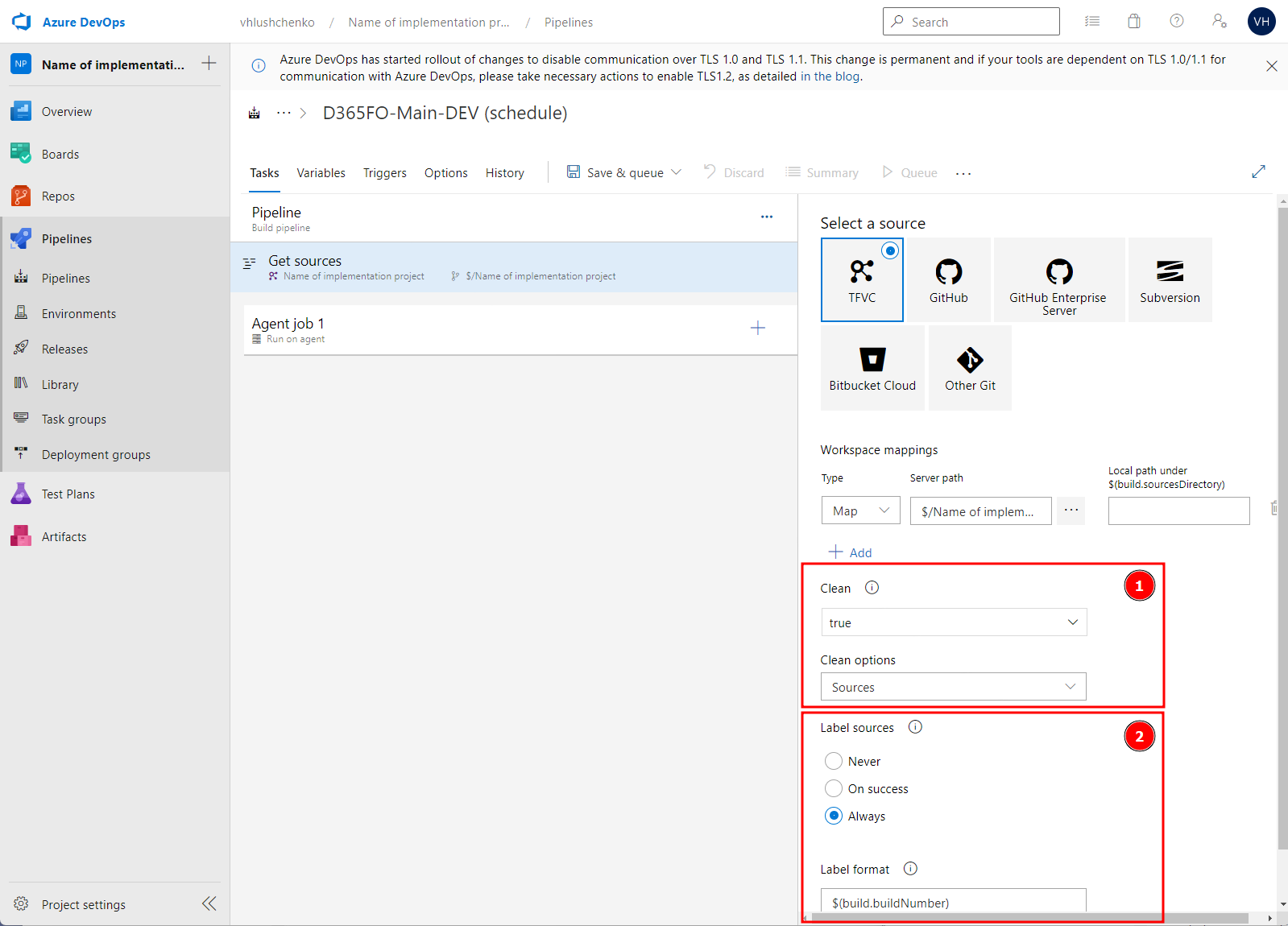
- Setup
Clean= true,Clean options= Sources Label sources= Always,Label format=$(build.buildNumber)
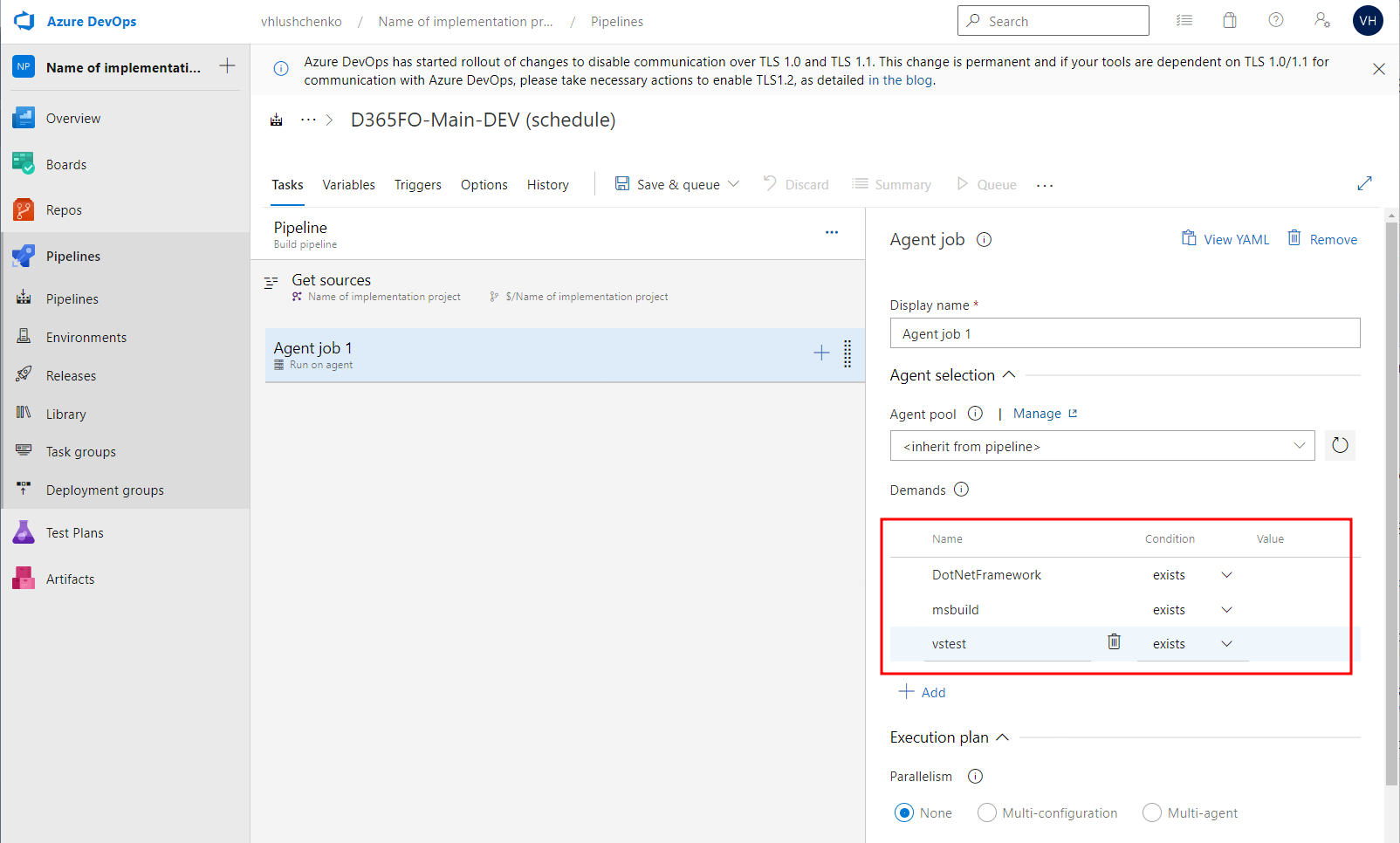
Agent job 1 propertyes
Jobs #
Need to add few more steps for run pipeline
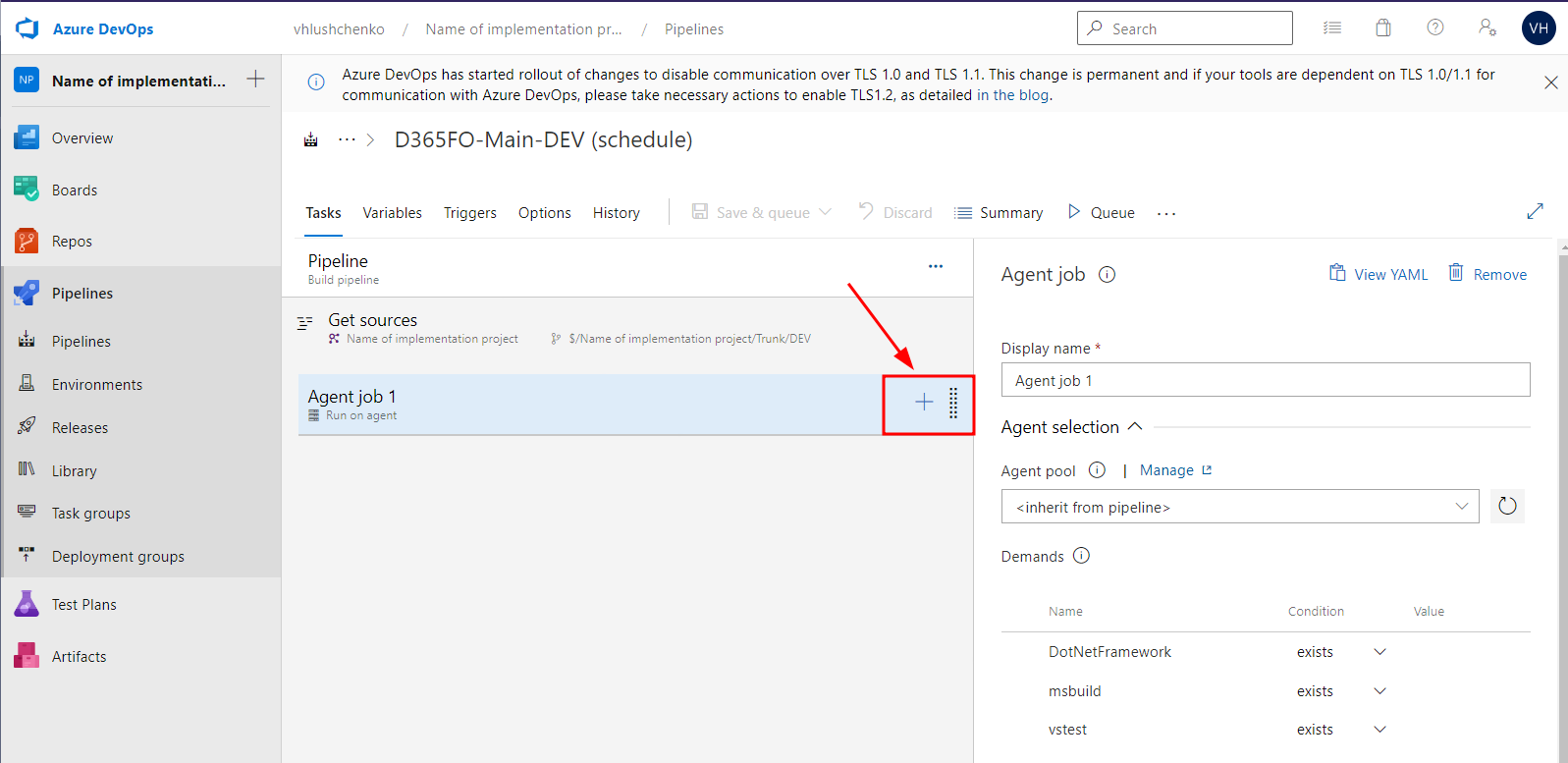
Prepare for build #
Add Powershell script with propertyes
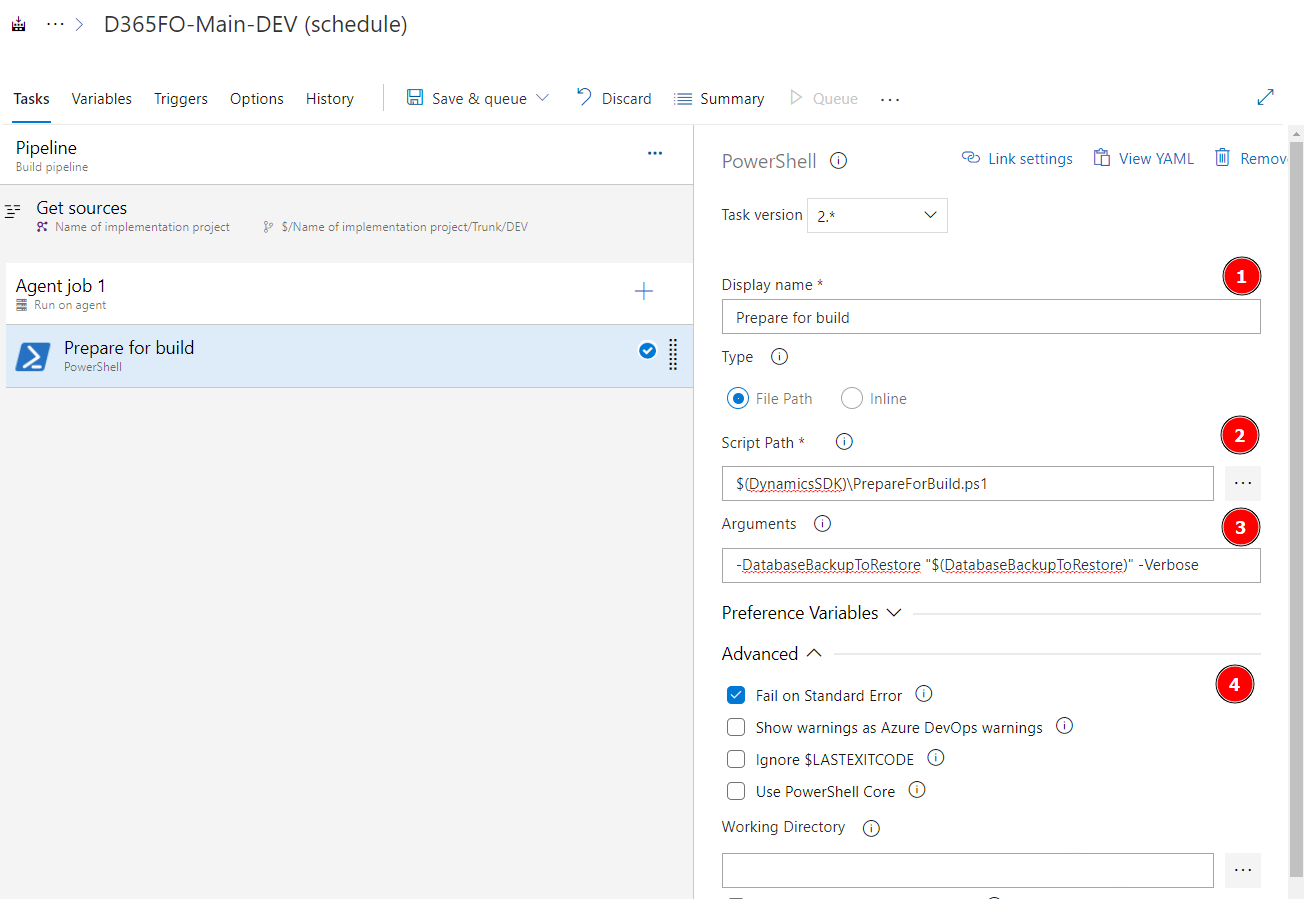
- Display name =
Prepare for build - Type\File path =
$(DynamicsSDK)\PrepareForBuild.ps1 - Arguments =
-DatabaseBackupToRestore "$(DatabaseBackupToRestore)" -Verbose - Advanced\Fail on Standard Error = True
Set Model Versions #
Add Powershell script with propertyes
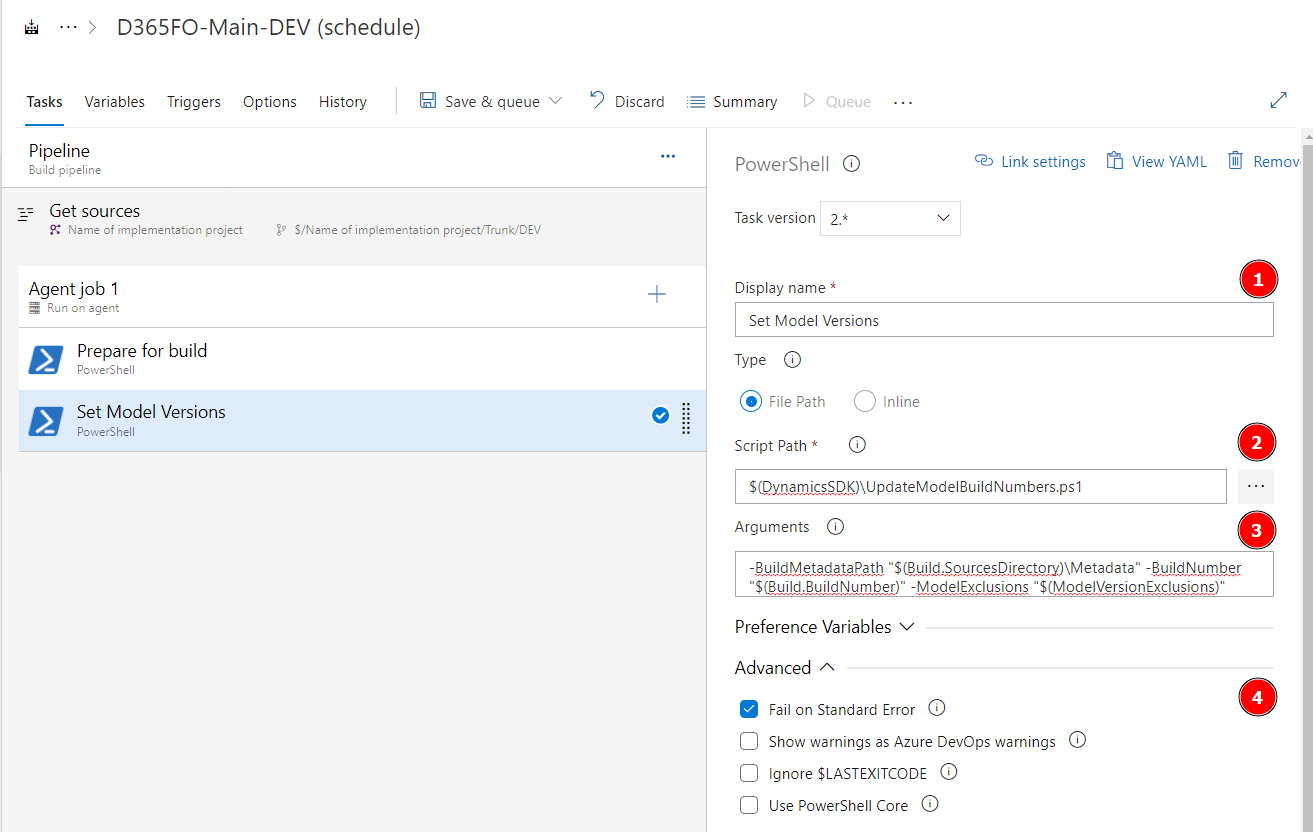
- Display name =
Set Model Versions - Type\File path =
$(DynamicsSDK)\UpdateModelBuildNumbers.ps1 - Arguments =
-BuildMetadataPath "$(Build.SourcesDirectory)\Metadata" -BuildNumber "$(Build.BuildNumber)" -ModelExclusions "$(ModelVersionExclusions)" - Advanced\Fail on Standard Error = True
Build the solution #
Add MSBuild script with propertyes
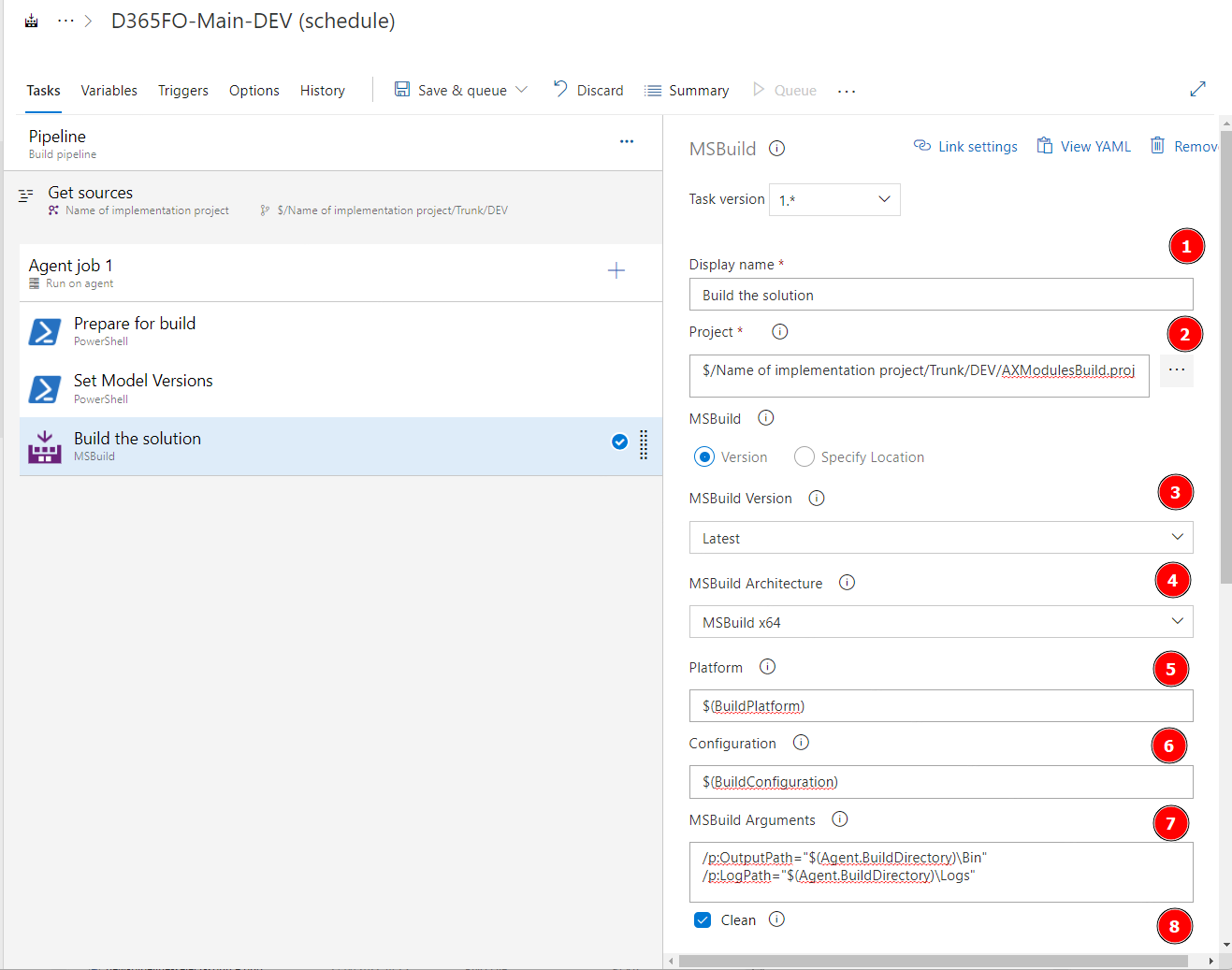
- Display name =
Build the solution - Project =
$/Name of implementation project/Trunk/DEV/AXModulesBuild.proj - MSBuild Version = Latest
- MSBuild Architecture =
MSBuild x64 - Platform =
$(BuildPlatform) - Configuration =
$(BuildConfiguration) - MSBuild Arguments =
/p:OutputPath="$(Agent.BuildDirectory)\Bin" /p:LogPath="$(Agent.BuildDirectory)\Logs", Clean = True - Advanced\Record Project Details = True
- Control Options\Enabled = True
Database Sync #
Add MSBuild script with propertyes
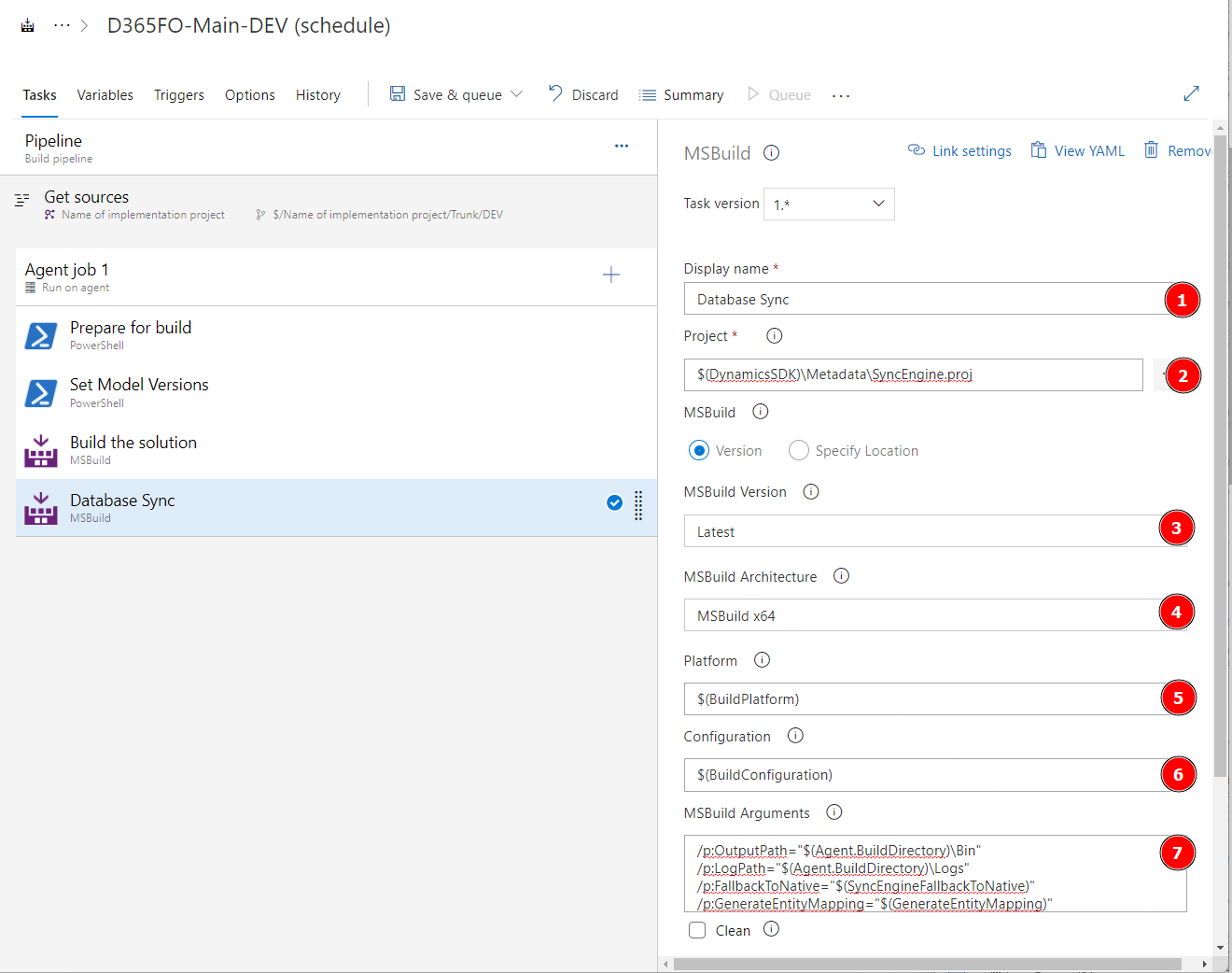
- Display name =
Database Sync - Project =
$(DynamicsSDK)\Metadata\SyncEngine.proj - MSBuild Version = Latest
- MSBuild Architecture =
MSBuild x64 - Platform =
$(BuildPlatform) - Configuration =
$(BuildConfiguration) - MSBuild Arguments =
/p:OutputPath="$(Agent.BuildDirectory)\Bin" /p:LogPath="$(Agent.BuildDirectory)\Logs" /p:FallbackToNative="$(SyncEngineFallbackToNative)" /p:GenerateEntityMapping="$(GenerateEntityMapping)" - Advanced\Record Project Details = True
- Control Options\Enabled = True
Deploy Reports #
Add Powershell script with propertyes
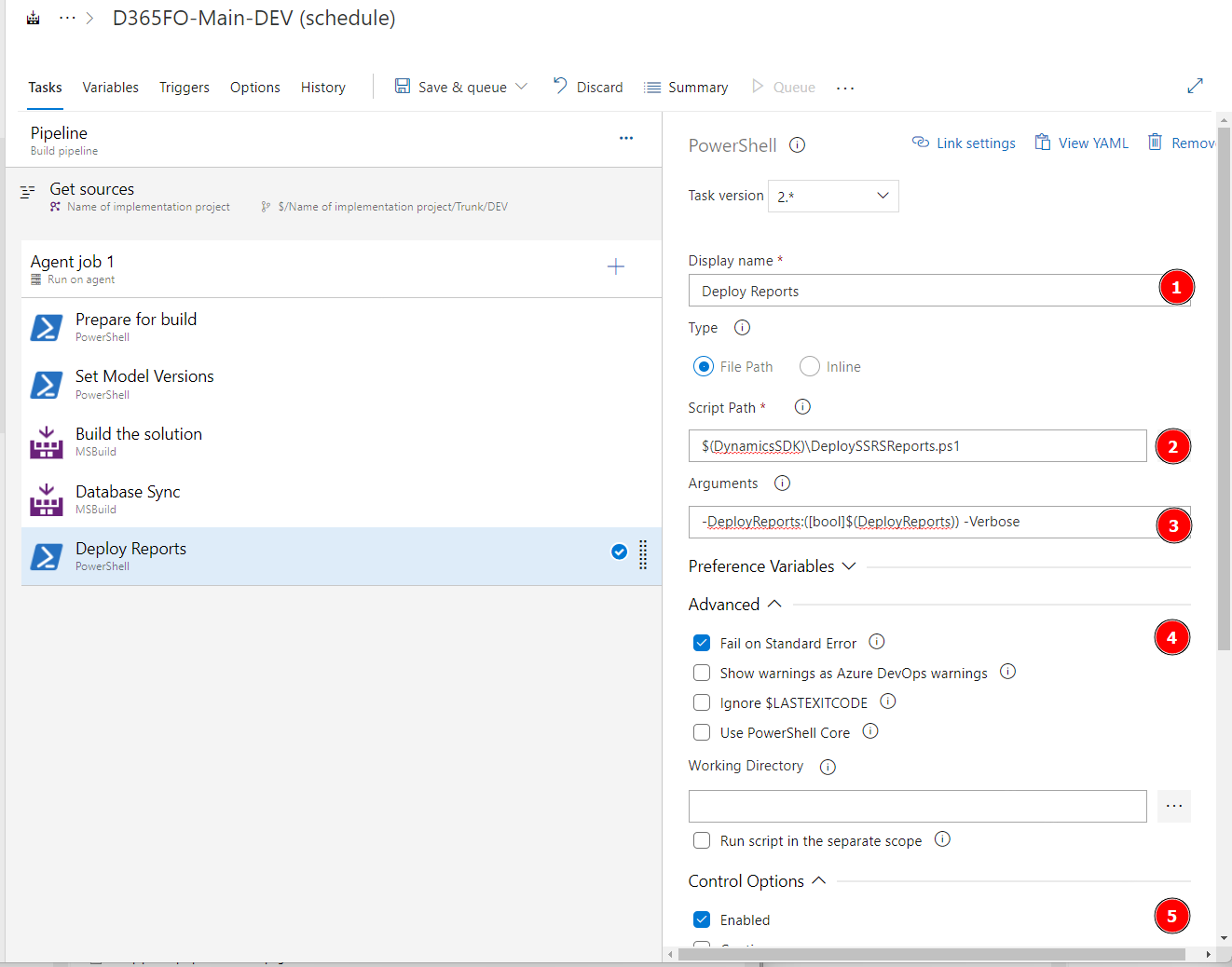
- Display name =
Deploy Reports - Type\File path =
$(DynamicsSDK)\DeploySSRSReports.ps1 - Arguments =
-DeployReports:([bool]$(DeployReports)) -Verbose - Advanced\Fail on Standard Error = True
- Control Options\Enabled = True
Create Deployable Package #
Add Create Deployable Package step with propertyes
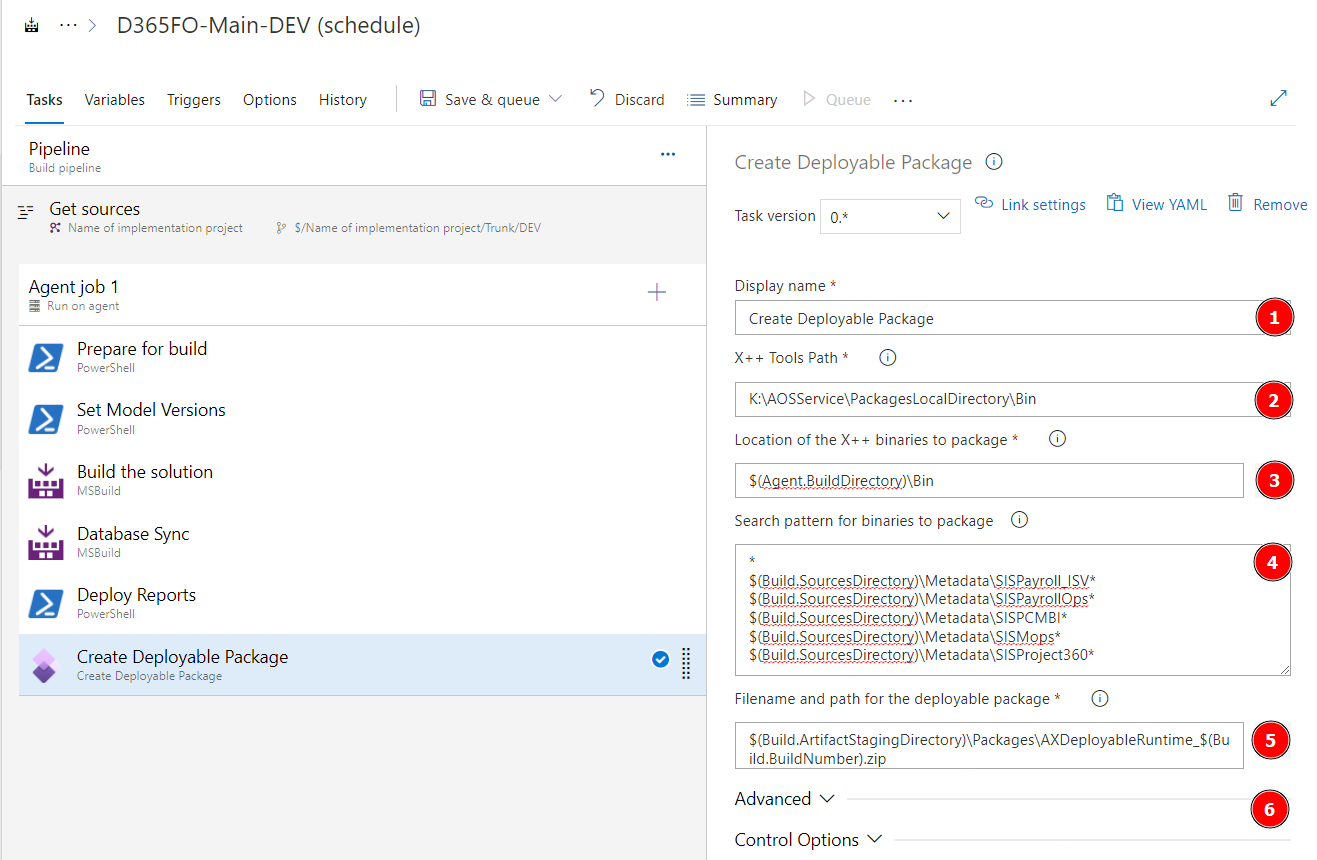
- Display name =
Create Deployable Package - X++ Tools Path =
K:\AOSService\PackagesLocalDirectory\Bin - Location of the X++ binaries to package =
$(Agent.BuildDirectory)\Bin - Search pattern for binaries to package =
* $(Build.SourcesDirectory)\Metadata\SISPayroll_ISV* $(Build.SourcesDirectory)\Metadata\SISPayrollOps* $(Build.SourcesDirectory)\Metadata\SISPCMBI* $(Build.SourcesDirectory)\Metadata\SISMops* $(Build.SourcesDirectory)\Metadata\SISProject360*- list of binary packages in MCM solution - Filename and path for the deployable package =
$(Build.ArtifactStagingDirectory)\Packages\AXDeployableRuntime_$(Build.BuildNumber).zip - Control Options\Enabled = True
Add Licenses to Deployable Package #
Add Add Licenses to Deployable Package step with propertyes
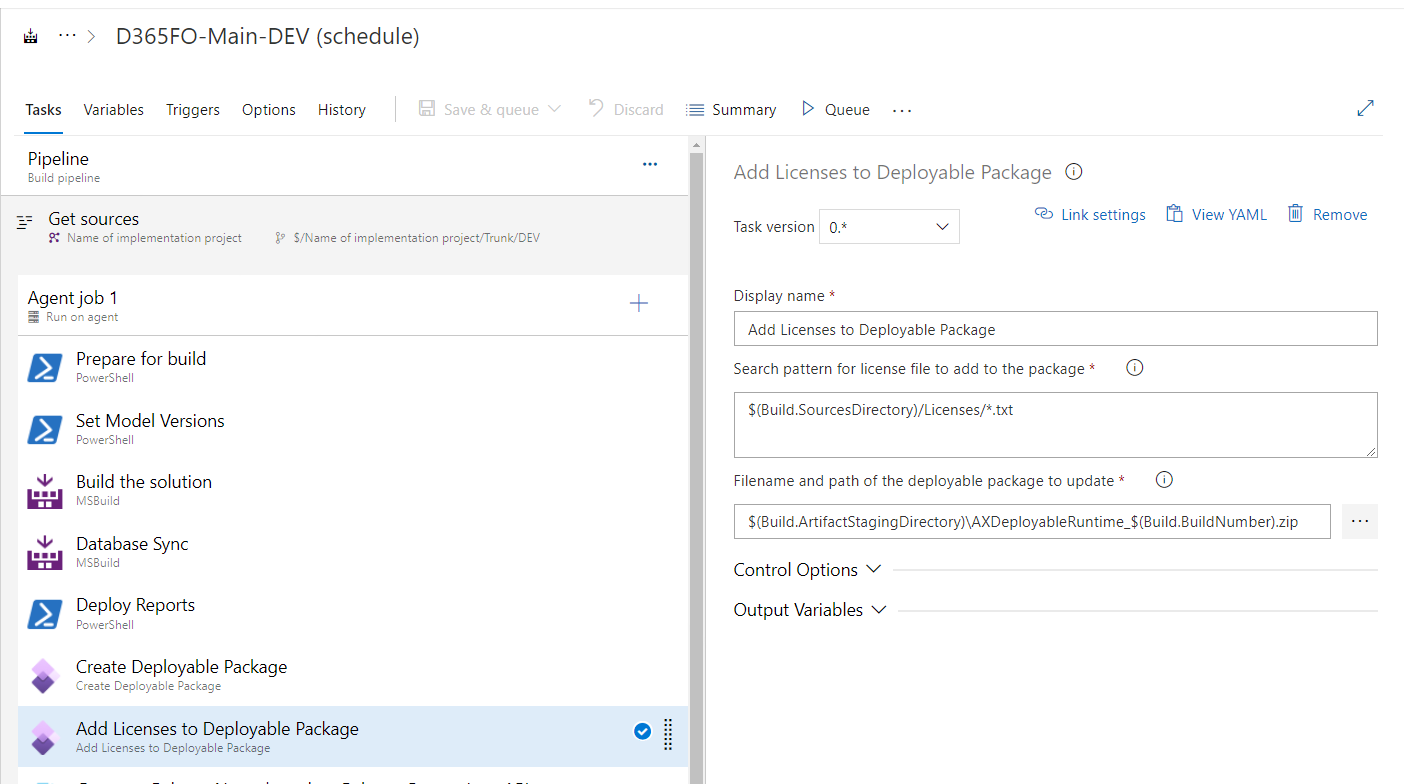
- Display name =
Add Licenses to Deployable Package - Search pattern for license file to add to the package =
$(Build.SourcesDirectory)/Licenses/*.txt - Filename and path of the deployable package to update =
$(Build.ArtifactStagingDirectory)\AXDeployableRuntime_$(Build.BuildNumber).zip - Control Options\Enabled = True
NOTE: On our project we use PCM module very often. We should place license code to the package. Folder with license code can be placed on local Build VM or in source control system in separate forled (preferred and described here)
Generate Release Notes based on Release Comparison API #
Add Generate Release Notes (Crossplatform) step with propertyes (example of release note
simple and
full
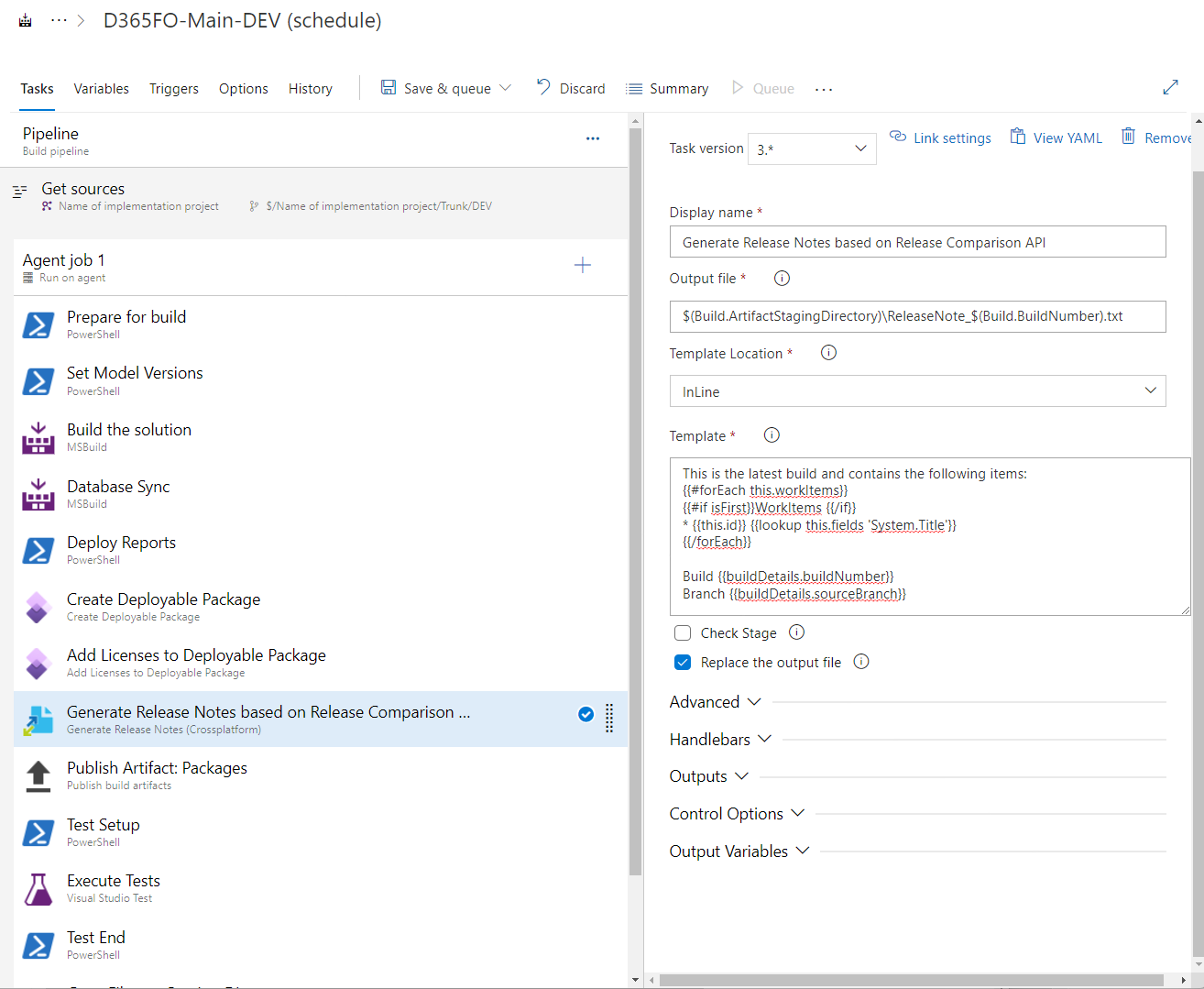
- Display name =
Generate Release Notes based on Release Comparison API - Output file =
$(Build.ArtifactStagingDirectory)\ReleaseNote_$(Build.BuildNumber).txt - Template Location =
InLine - Template =
This is the latest build and contains the following items:
{{#forEach this.workItems}}
{{#if isFirst}}WorkItems {{/if}}
* {{this.id}} {{lookup this.fields 'System.Title'}}
{{/forEach}}

Build {{buildDetails.buildNumber}}
Branch {{buildDetails.sourceBranch}}
- Replace the output file = True
- Control Options\Enabled = True
Publish Artifact: Packages #
Add Publish build artifacts step with propertyes
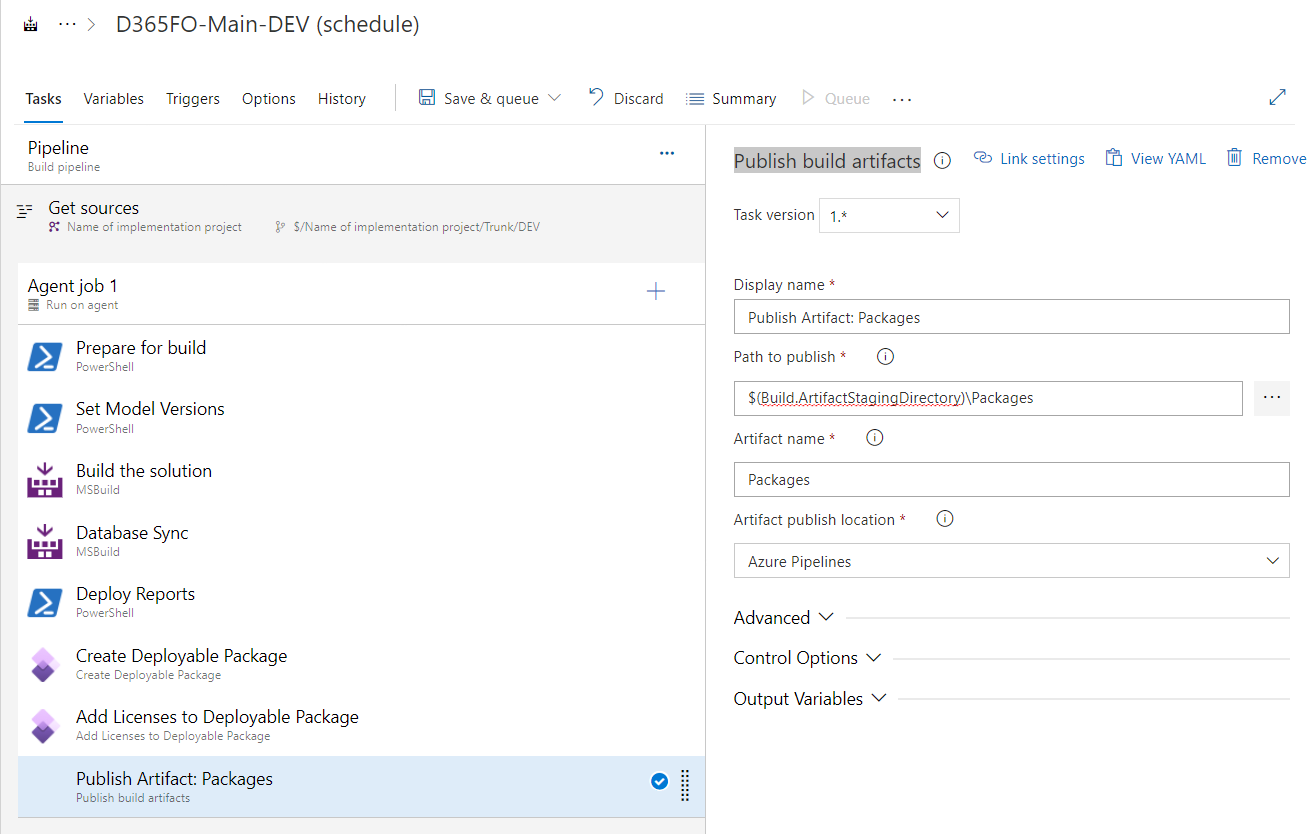
- Display name =
Publish Artifact: Packages - Path to publish =
$(Build.ArtifactStagingDirectory)\Packages - Artifact name =
Packages - Artifact publish location =
Azure Pipelines - Control Options\Enabled = True
Test Setup #
Add Powershell script with propertyes
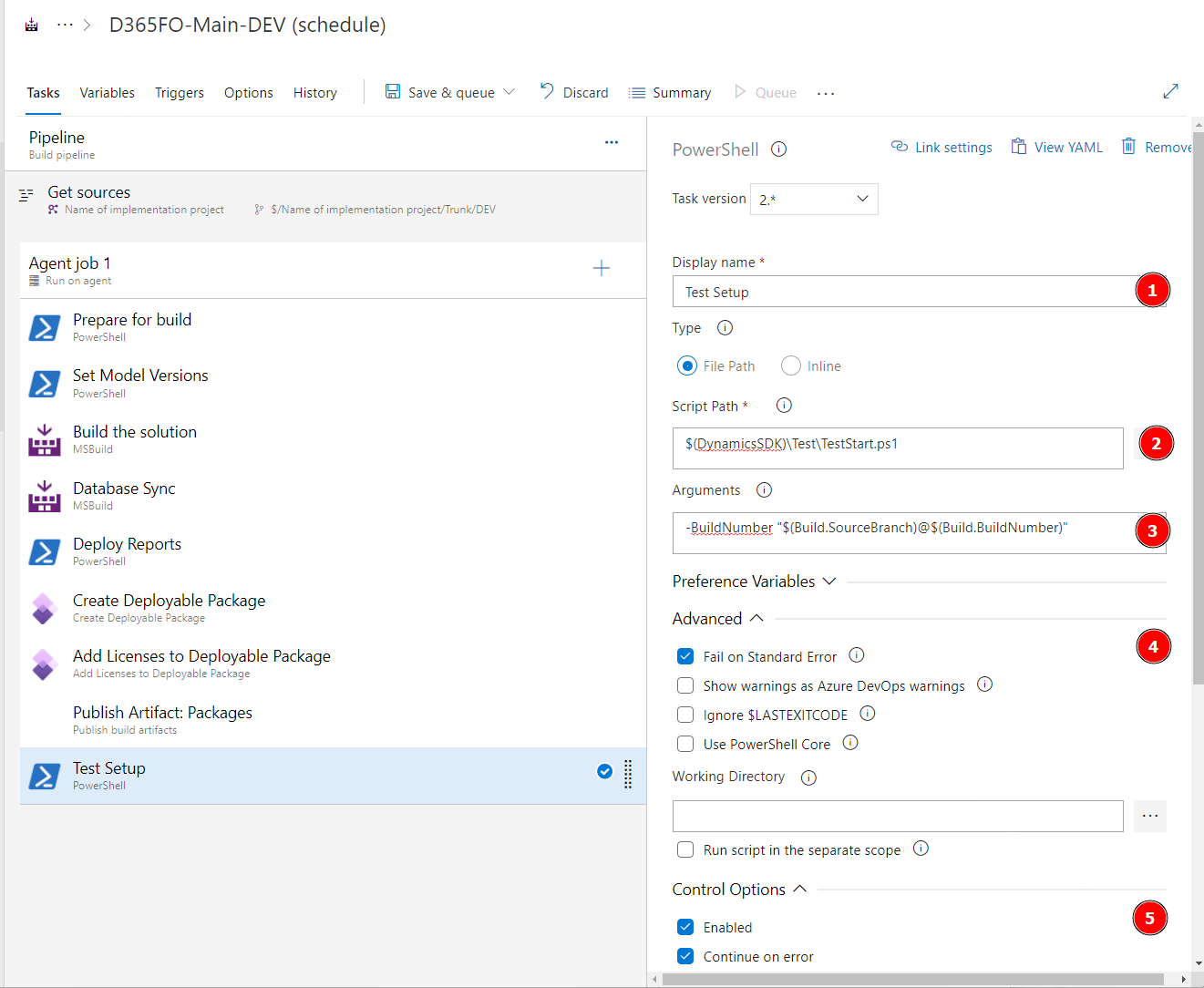
- Display name =
Test Setup - Type\File path =
$(DynamicsSDK)\Test\TestStart.ps1 - Arguments =
-BuildNumber "$(Build.SourceBranch)@$(Build.BuildNumber)" - Advanced\Fail on Standard Error = True
- Control Options\Enabled = True, Continue on error = True
Execute Tests #
Add Visual Studio Test script with propertyes
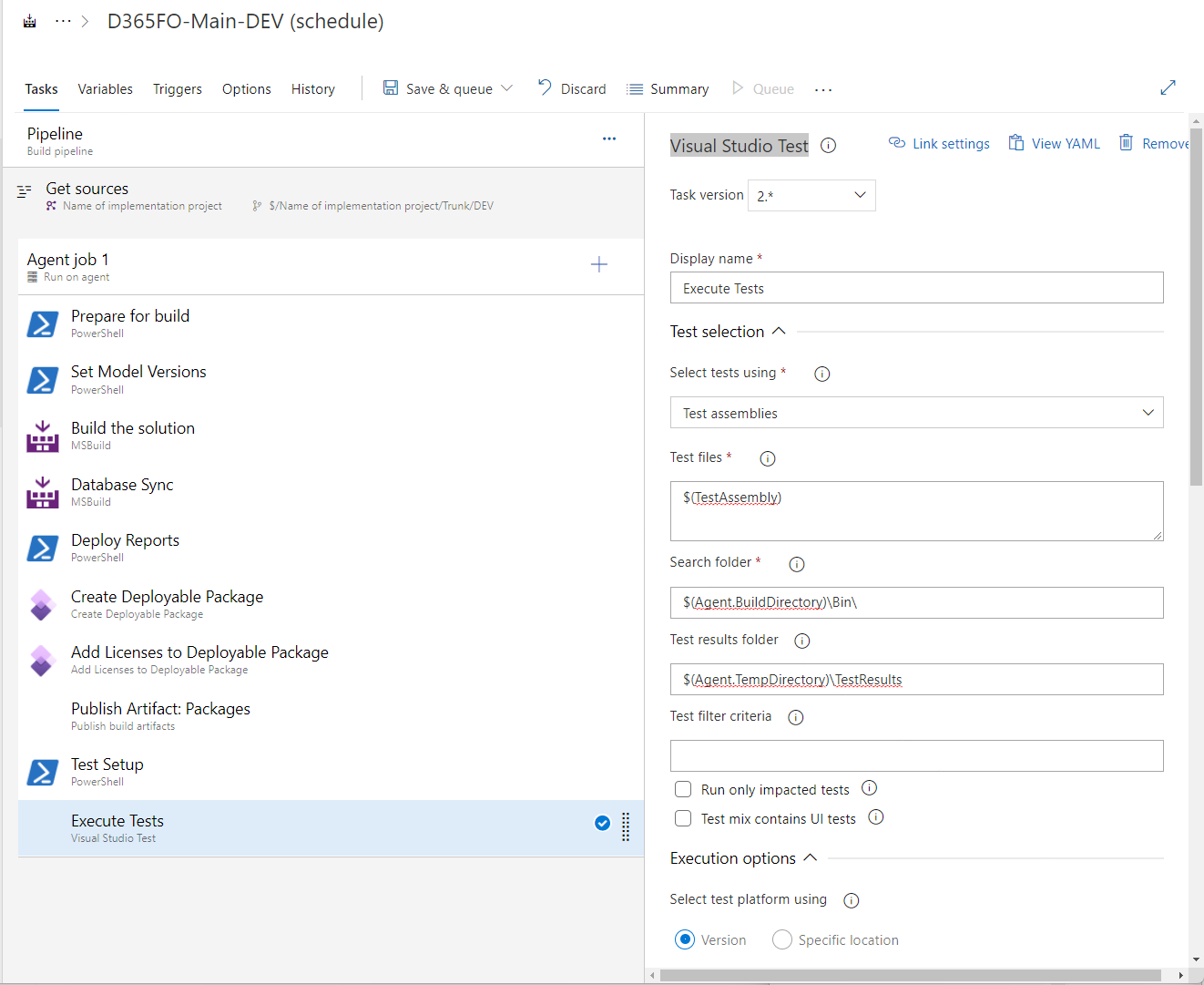
- Display name =
Execute Tests - Select tests using =
Test assemblies - Test files =
$(TestAssembly) - Search folder =
$(Agent.BuildDirectory)\Bin\ - Test results folder =
$(Agent.TempDirectory)\TestResults - Test filter criteria =
$(TestFilter) - Execution options\Select test platform using =
Version. Test platform version =Visual Studio 2019, Code coverage enabled = True, Other console options =/Platform:X64 /InIsolation /UseVsixExtensions:true, Collect advanced diagnostics in case of catastrophic failures = True - Advanced execution options\Automatically determined the batch size = True
- Reporting options\Test run title =
Unit Test - $(Build.DefinitionName), Build platform =Build platform, Build configuration =$(BuildConfiguration), Upload test attachments = Tru
Test End #
Add Powershell script with propertyes
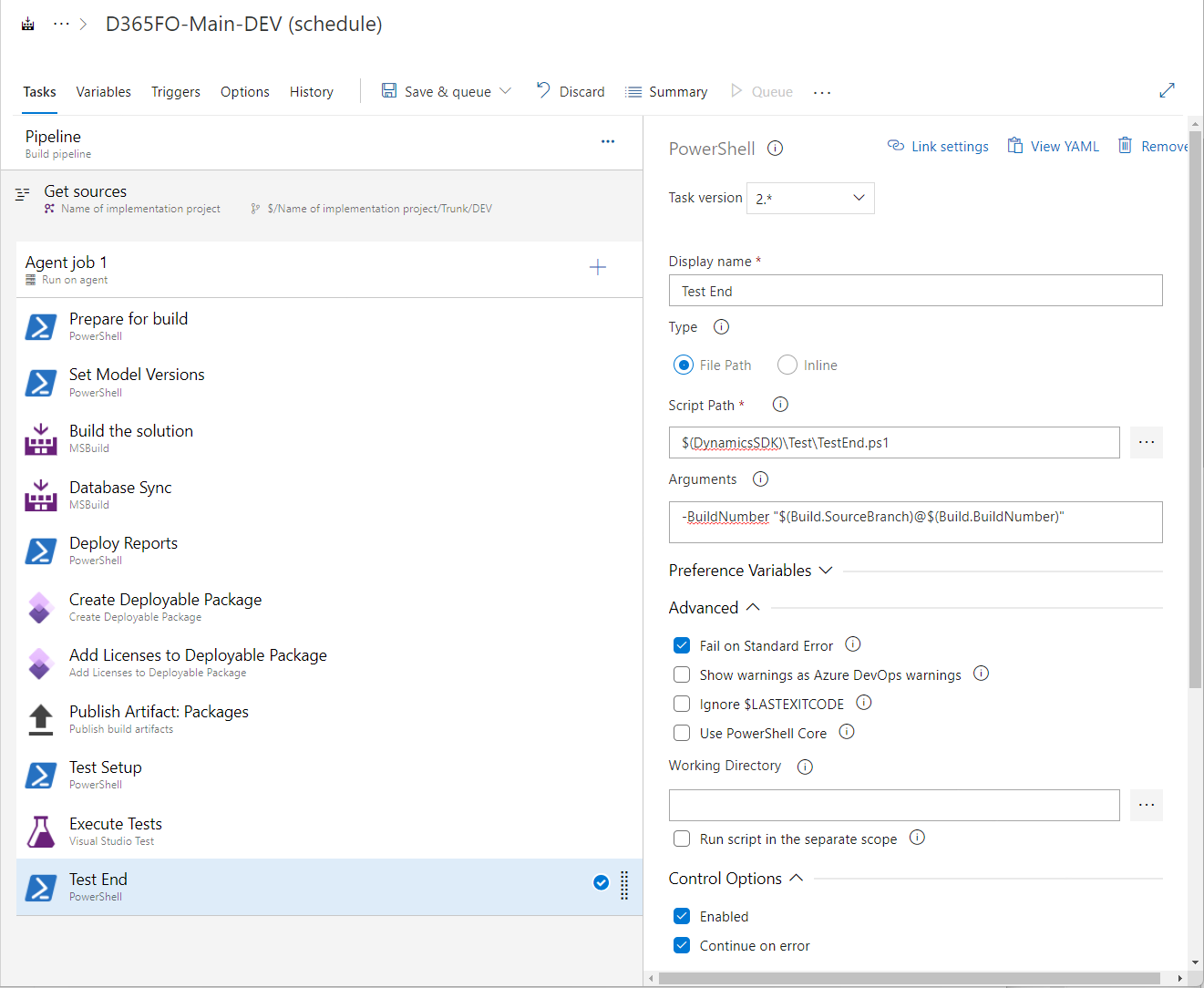
- Display name =
Test Setup - Type\File path =
$(DynamicsSDK)\Test\TestStart.ps1 - Arguments =
-BuildNumber "$(Build.SourceBranch)@$(Build.BuildNumber)" - Advanced\Fail on Standard Error = True
- Control Options\Enabled = True, Continue on error = True
Copy Files to: Staging Directory #
Add Copy files script with propertyes
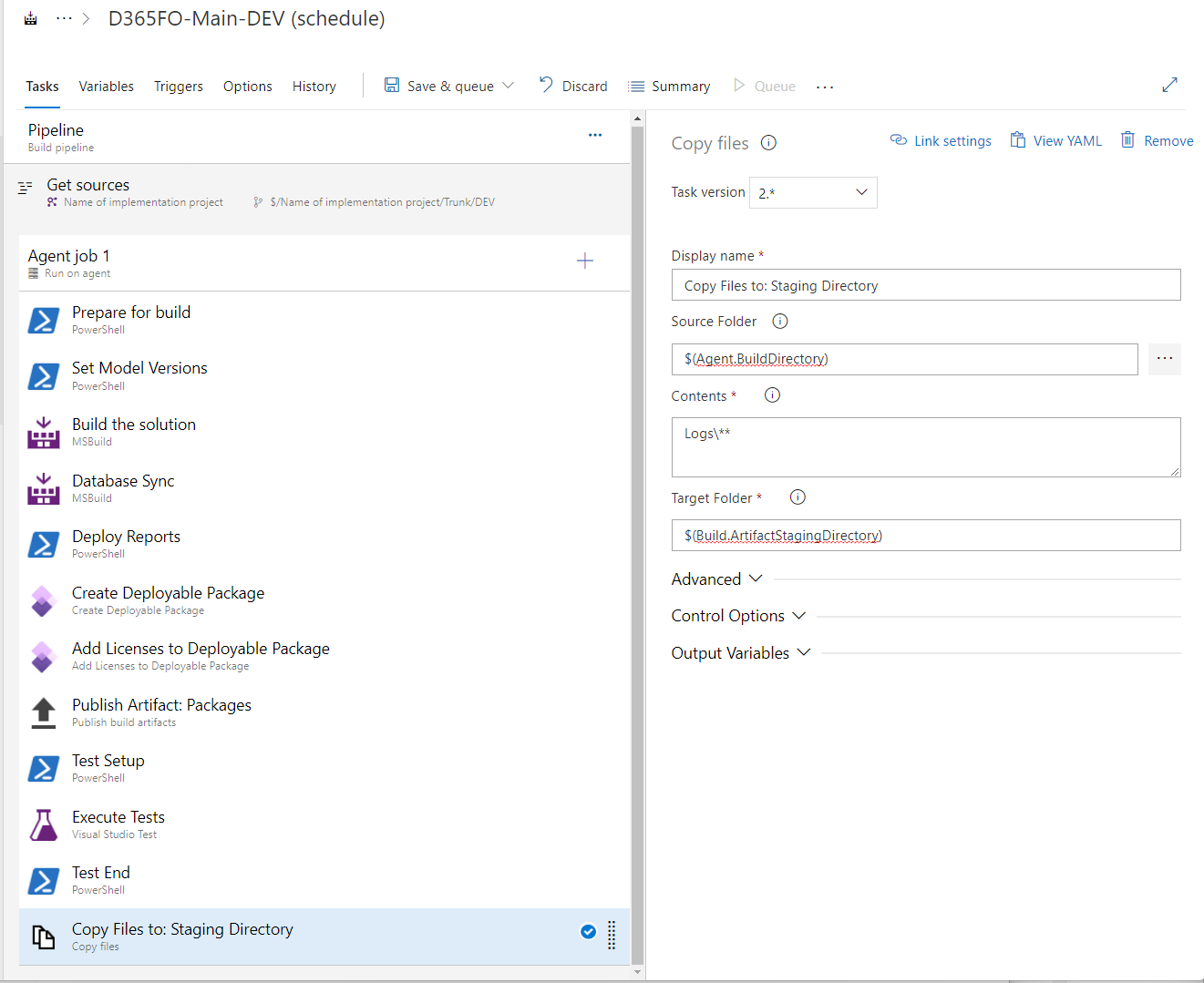
- Display name =
Copy Files to: Staging Directory - Source Folder =
$(DynamicsSDK)\Test\TestStart.ps1 - Contents =
Logs\** - Target Folder =
$(Build.ArtifactStagingDirectory) - Control Options\Enabled = True
Publish Artifact: AdditionalLogs #
Add Publish build artifacts script with propertyes
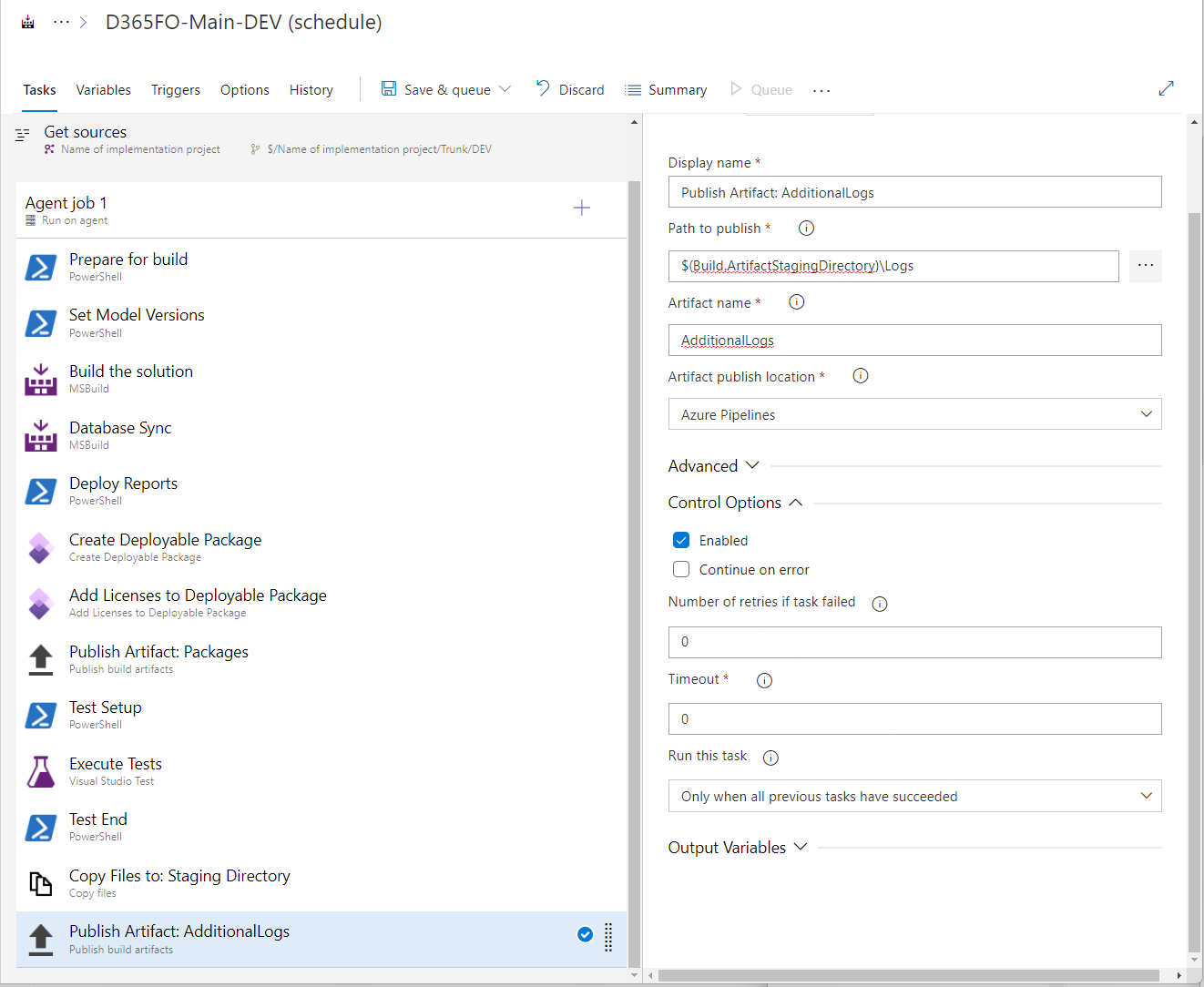
- Display name =
Publish Artifact: AdditionalLogs - Path to publish =
$(Build.ArtifactStagingDirectory)\Logs - Artifact name =
AdditionalLogs - Artifact publish location =
Azure Pipelines - Control Options\Enabled = True
Publish Artifact: Release note #
Add Publish build artifacts script with propertyes
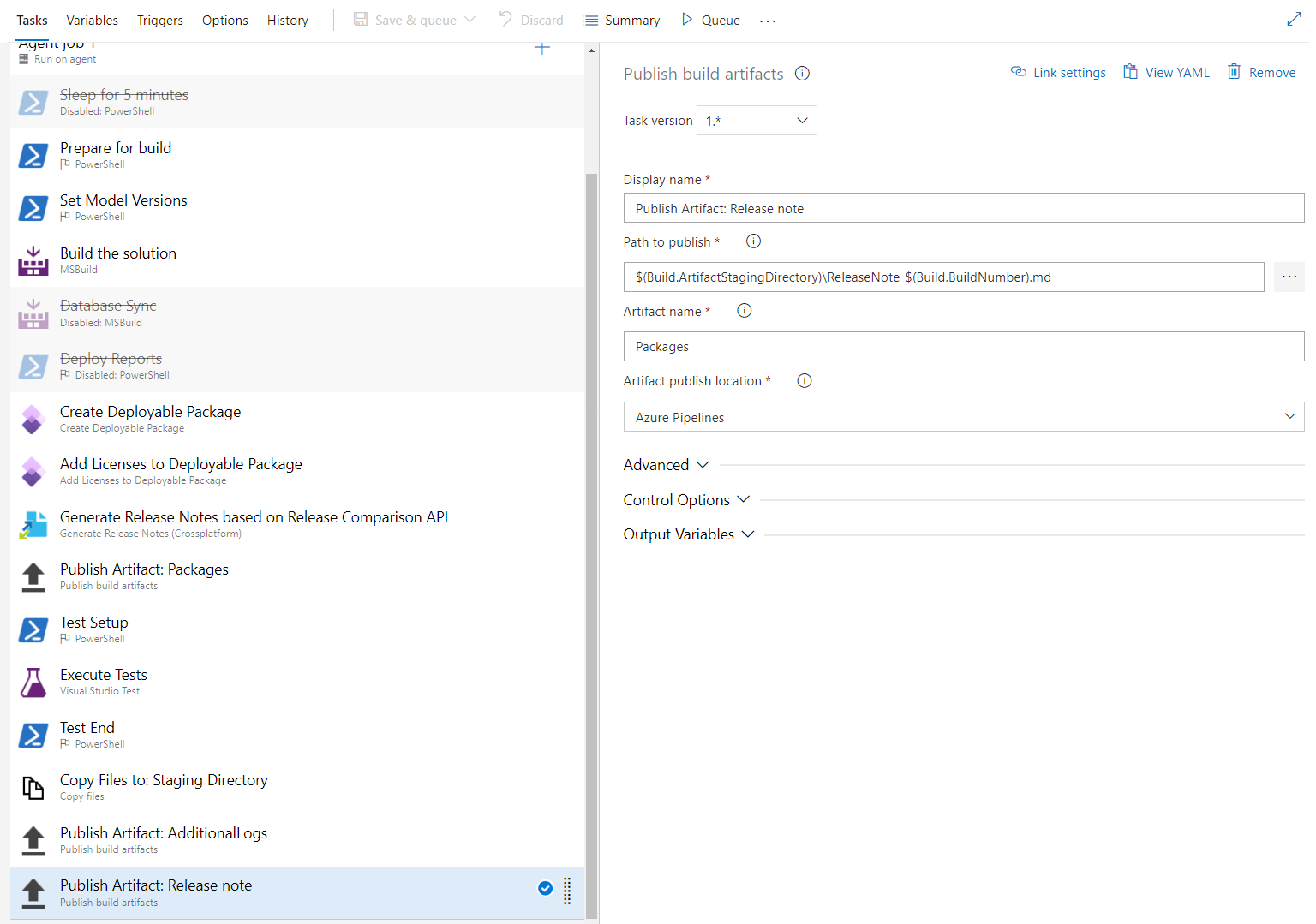
- Display name =
Publish Artifact: Release note - Path to publish =
$(Build.ArtifactStagingDirectory)\ReleaseNote_$(Build.BuildNumber).txt - Artifact name =
Packages - Artifact publish location =
Azure Pipelines - Control Options\Enabled = True